 BallotKeep

1Quick checklist
Here's the whole job in order. Each step links to its chapter.
- Sign in with the invite link we emailed you (password + authenticator app).
- Check the name, add your election contact, and pick a PIN length.
- Set voting dates, reminders, quorum, and who gets the certified report.
- Upload your voter list.
- Optional: collect nominations from members before you build the ballot.
- Add your offices and candidates, for example President, Board of Directors and Treasurer. Type them in, or import them all at once from a spreadsheet.
- Add your logo and colors, and any Yes / No questions.
- Preview the ballot exactly as members will see it.
- Send the save-the-date, then the how-to-vote email with each member's PIN.
- Open voting (or let it open on schedule) and watch turnout.
- At your meeting: run Meeting votes on motions, live in the room or on Zoom.
- Close voting. Your secretary gets the certified report automatically. Download your records.
2Sign in
We email your first admin an invite link. Open it to set a password and connect an authenticator app (Google Authenticator, Microsoft Authenticator, 1Password and similar). Save the recovery codes it shows you somewhere safe.
After that, sign in at vote.ballotkeep.com/login with your email, password and the 6-digit code from the app. You land on your admin console. The Results & Records button at the top opens the results page.
Co-admins
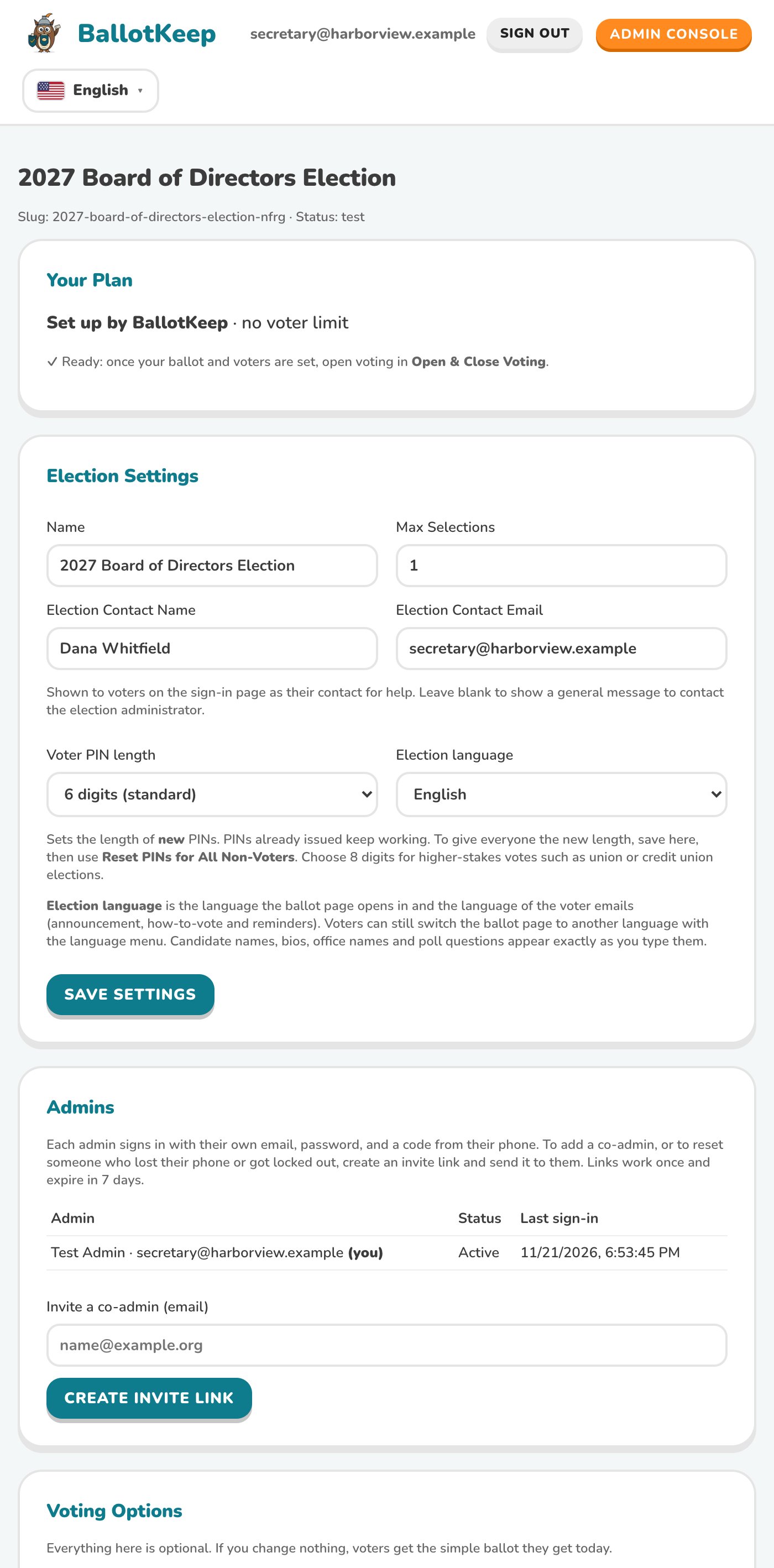
Every admin has their own login. Never share yours. In Admins, right below Election Settings, invite a co-admin by email. You get a one-time link to send them, and it works for 7 days. Use the same tool if someone loses their phone.
3Election settings
- Name: what voters see at the top of the ballot, for example "2027 Annual Meeting Election".
- Election contact: shown to voters as who to ask for help. Replies to voter emails go here too.
- Election language: the language the ballot page opens in and the language of the voter emails. Members can switch the page to any of the 7 languages: English, Spanish, Chinese, Arabic, French, Vietnamese and Polish.
- PIN length: 6 digits is standard. Choose 8 digits for higher-stakes votes such as union or credit union elections.
4How voters choose
Pick (most common)
Voters check up to the number of seats. The candidates with the most votes win. "Vote for up to 3" elects three.
Ranked choice
Voters rank candidates 1st, 2nd, 3rd. Counted in rounds (instant runoff). Always one winner per office.
Approval
Voters check every candidate they find acceptable. The most approvals win the seats.
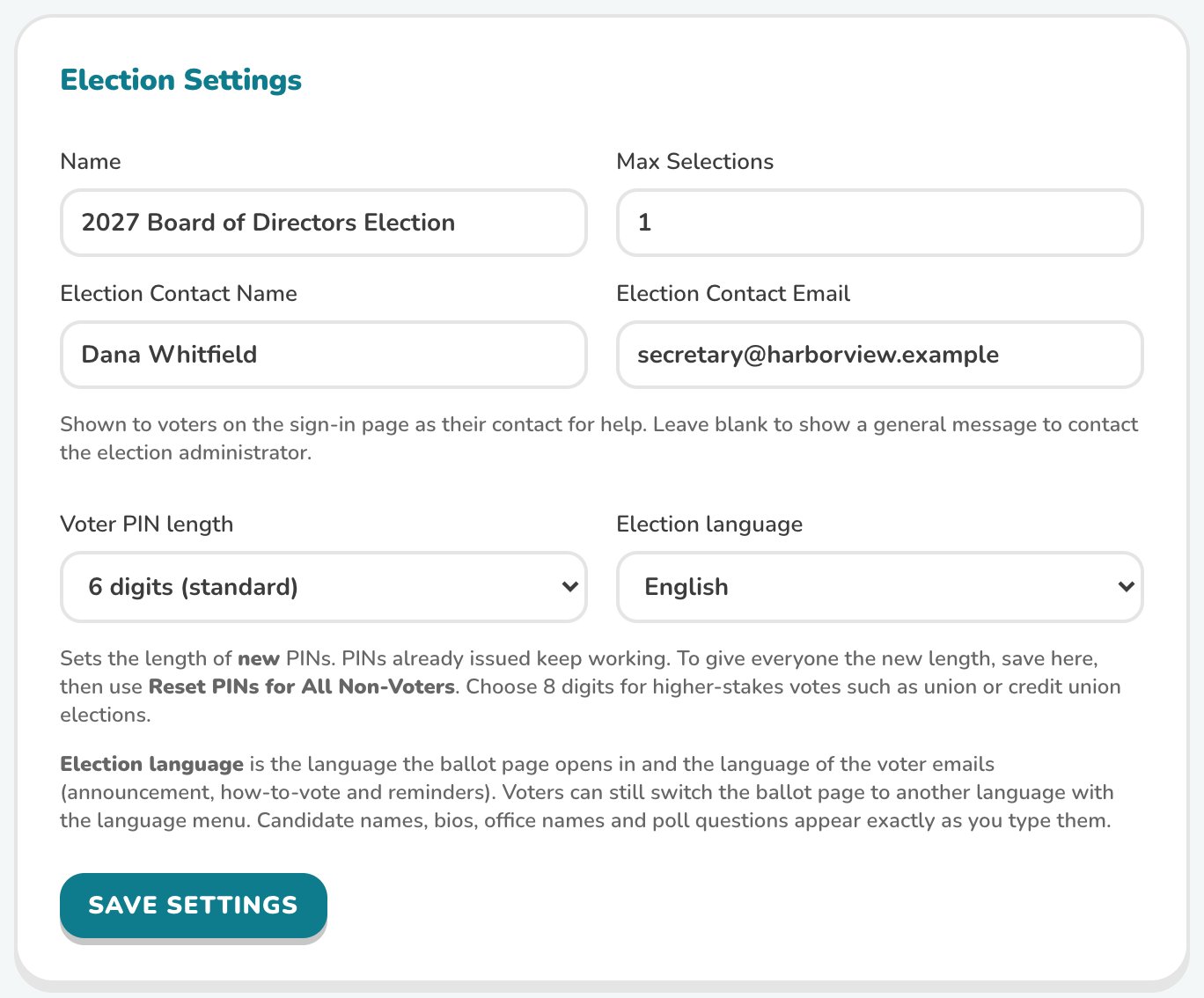
With one office, choose the method in Voting Options → 1. How do voters choose? and the seats in Max Selections. With several offices, each office card has its own method and seats.
Voters can always abstain, on the whole ballot or on any single office. An abstaining ballot still counts toward quorum.
5Dates, reminders, quorum
All of this is in Voting Options, and all of it is optional.
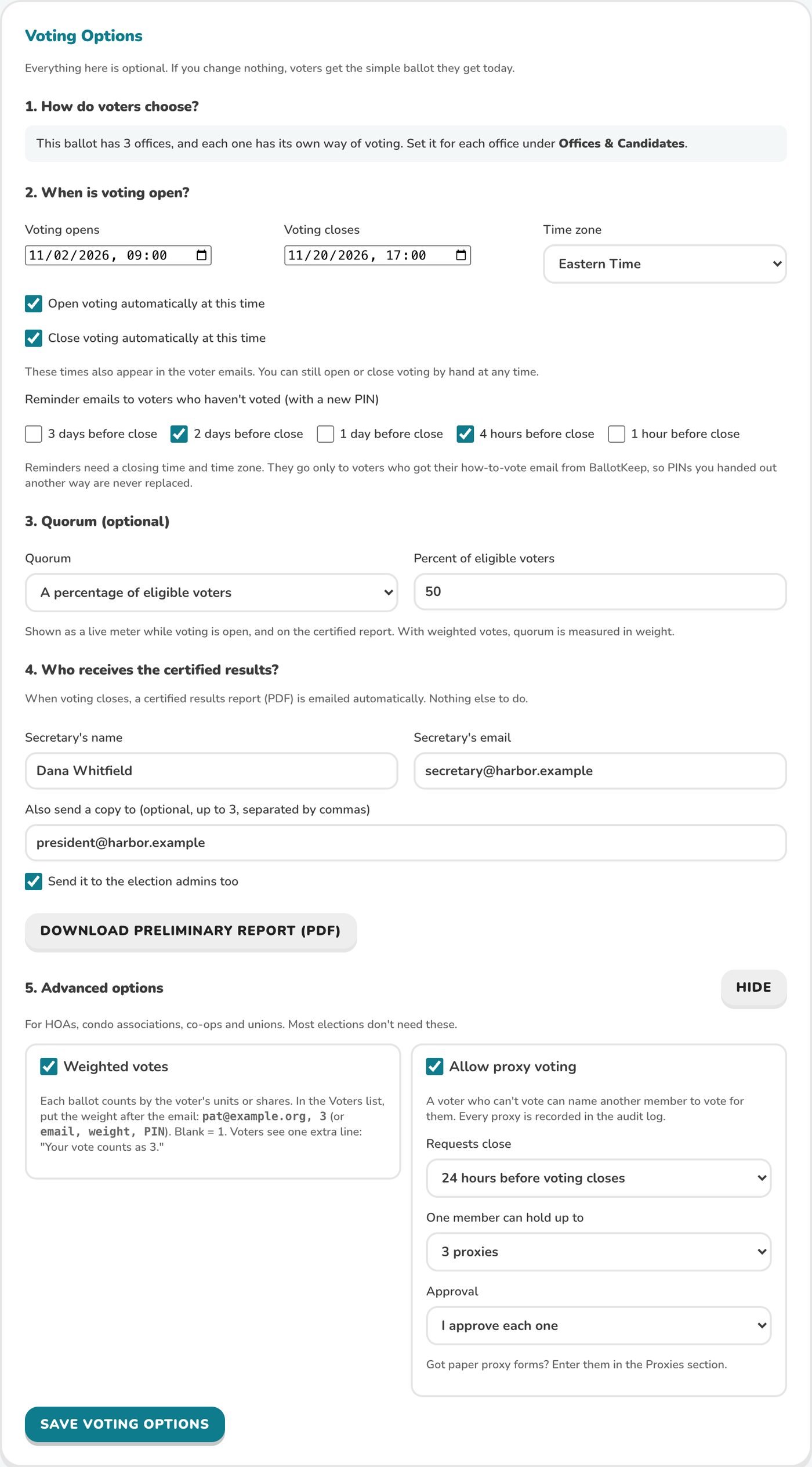
- When voting opens and closes, plus your time zone. These dates appear in voter emails.
- Open / close automatically: BallotKeep switches the status for you on time. You can still open or close by hand.
- Reminders: 3 days, 2 days, 1 day, 4 hours or 1 hour before close. They go only to members who haven't voted, and each one carries a new PIN.
- Quorum: a percentage of eligible voters or a number of ballots. Shown as a live meter and on the report.
6Certified report
When voting closes, a certified results report (PDF) is emailed automatically to your secretary, up to 3 more people, and (if you leave the box ticked) your admins. Fill in the secretary's name and email under Voting Options → 4.
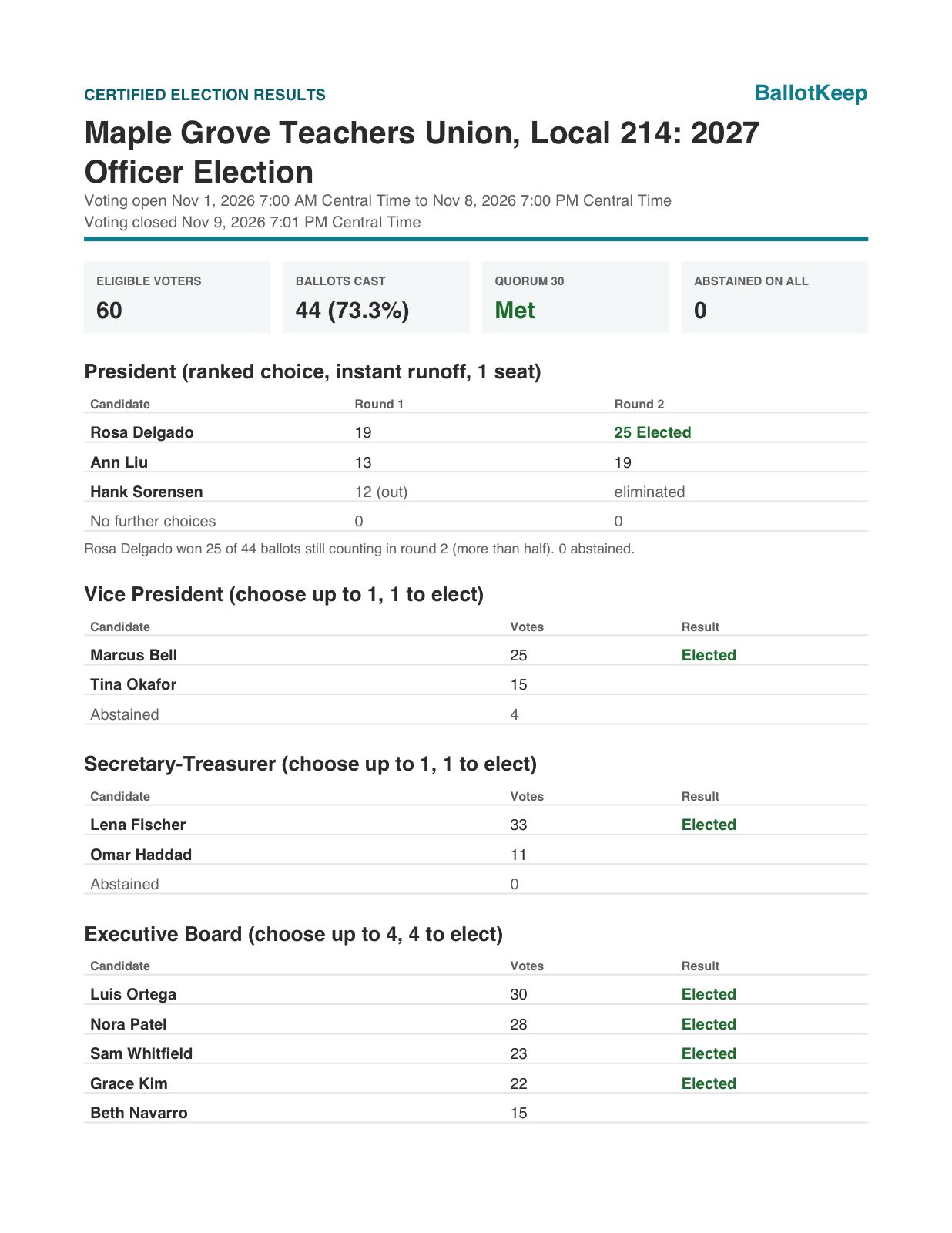
The report shows turnout, quorum, the results of every office (with every round of a ranked-choice count), any ties, and a fingerprint of your audit log. While voting is open you can download a preliminary report; after it closes, you can email it again at any time.
7Weighted votes & proxies
These are for HOAs, condo associations, co-ops and unions, and are switched off until you turn them on under Voting Options → 5. Advanced options.
Weighted votes
Each ballot counts by the member's units or shares, in every office. Quorum is measured in weight too. Turn this on before you upload voters, then put each member's units after their email (chapter 8).
Proxies
- A member who can't vote names another member, or you enter a paper proxy form yourself.
- You approve or decline each request (or choose to approve automatically). Both people are emailed.
- The proxy signs in and sees a separate, clearly labeled ballot for each member they represent.
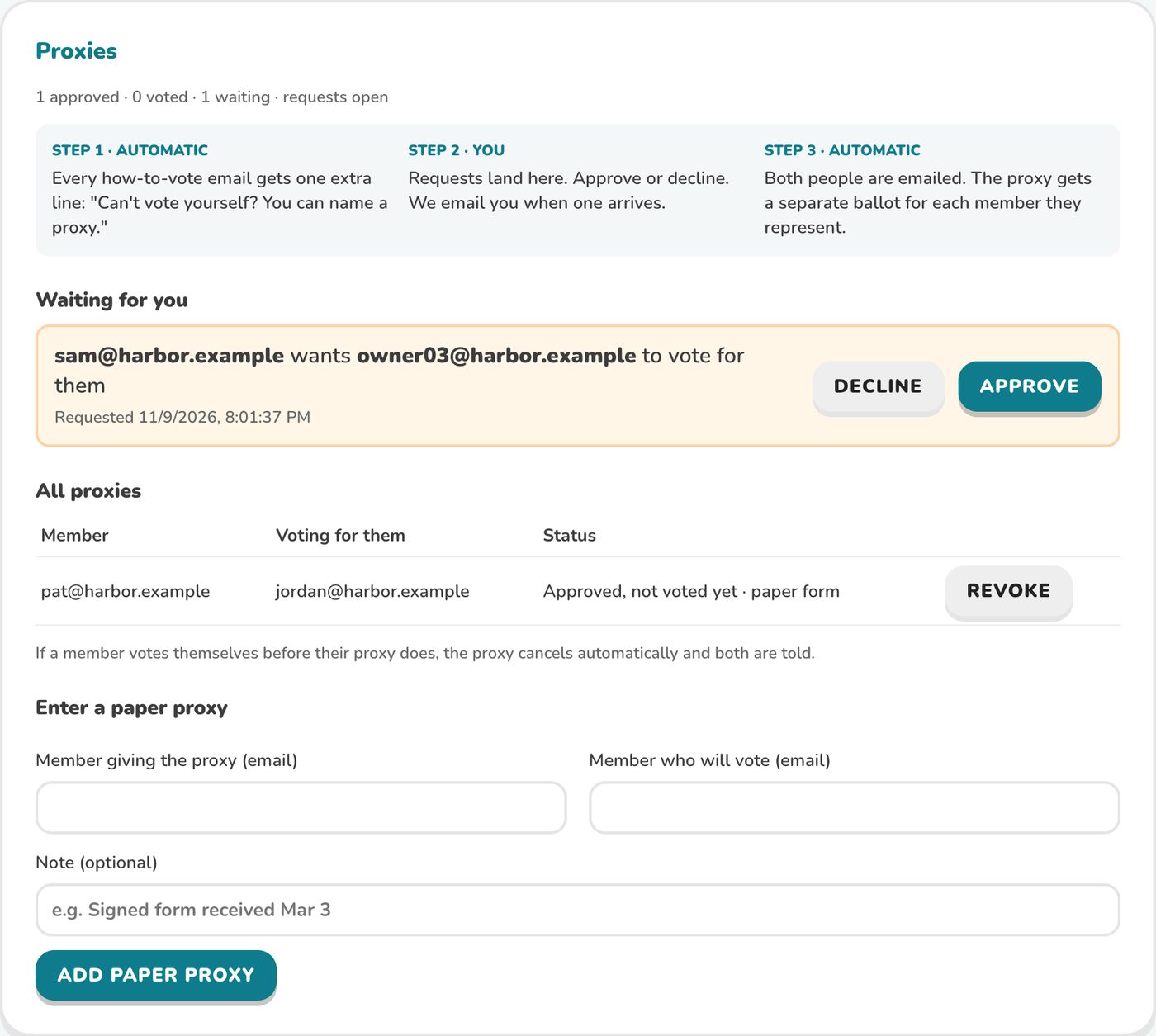
Choose when requests close (24 or 48 hours before voting ends, or at close) and how many proxies one member may hold. If a member votes themselves, their proxy is cancelled automatically.
8Voters & PINs
Paste emails (one per line) or upload a CSV with an email column. You can add a PIN after a comma: pat@example.org,482913. Otherwise BallotKeep makes one. The easiest way is to let the how-to-vote email send everyone a fresh PIN (chapter 13).
With weighted votes on, put the weight after the email: pat@example.org, 3 (or email, weight, PIN).
Text-message PINs (add-on): add a US or Canadian mobile number anywhere on a member's line, for example pat@example.org, (413) 555-0123, or add a phone column to your CSV. Tick the box confirming these members agreed to get texts. Numbers that aren't valid are listed so you can fix them.
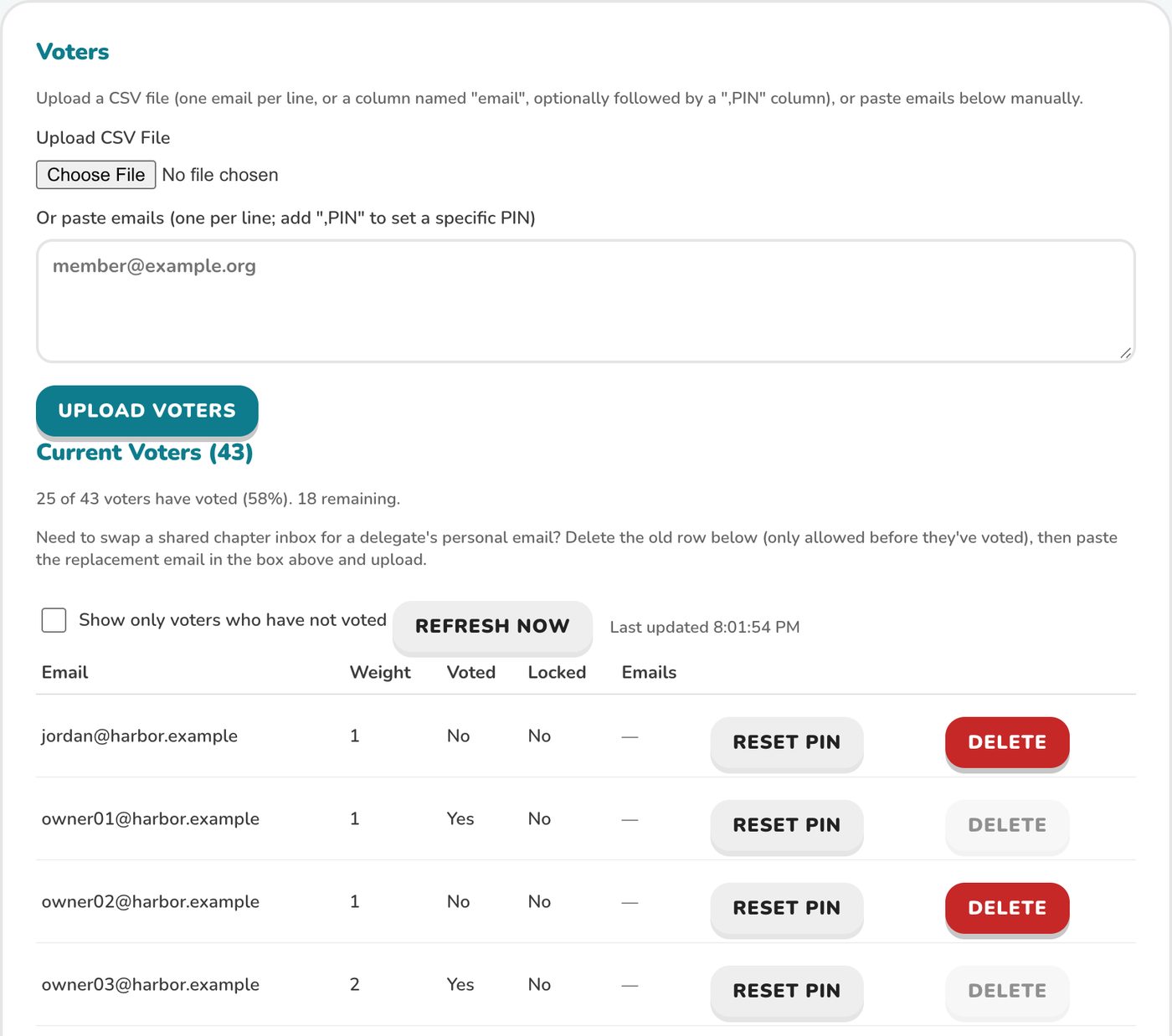
- Typo in an email? Delete the row (before they've voted) and add the right address.
- Locked out? After 10 wrong PINs a member is locked. Reset their PIN to unlock them.
- Bulk PIN reset: gives every non-voter a new PIN and downloads a CSV for a mail merge, if you prefer to send PINs yourself.
9Nominations
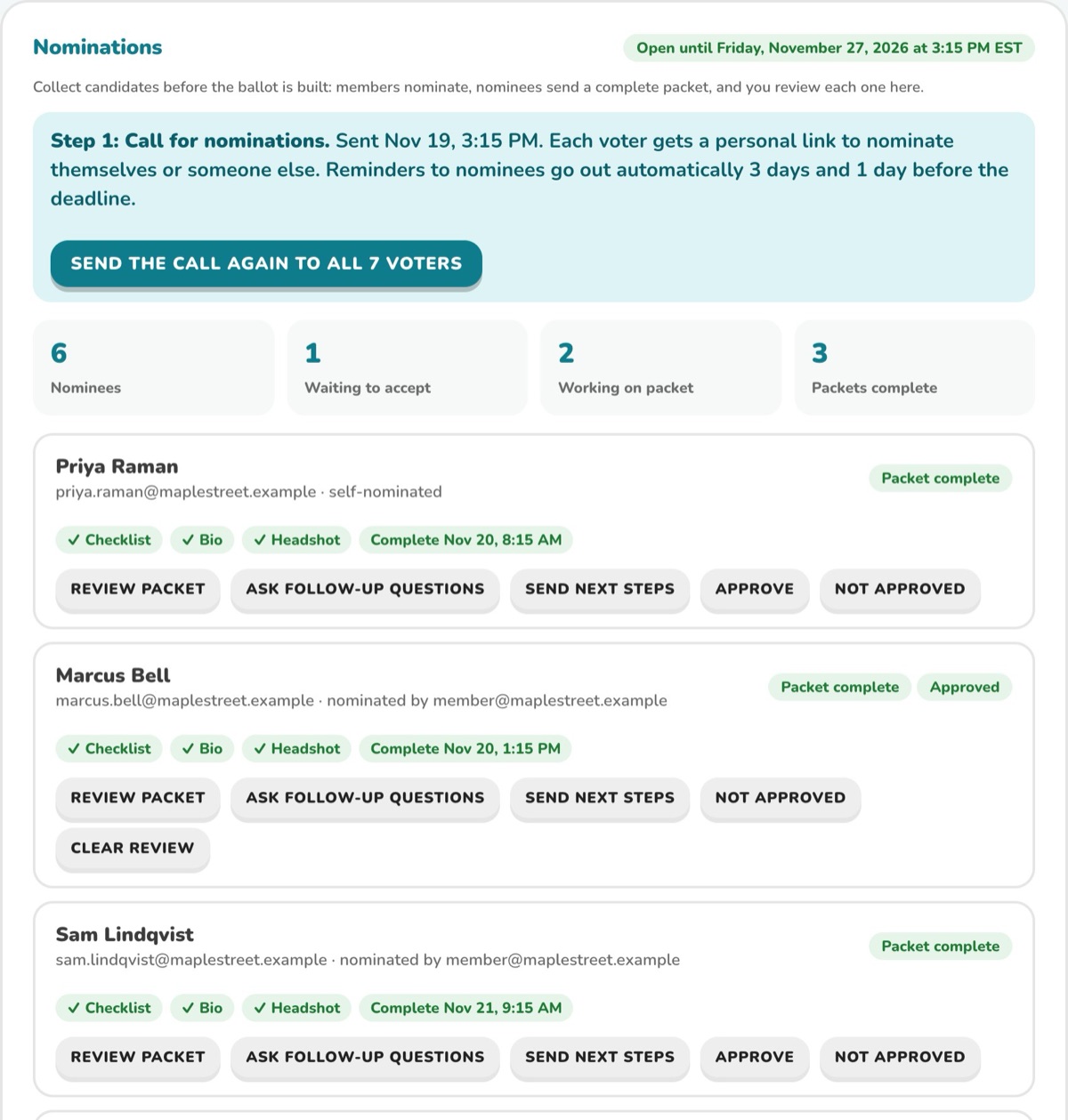
Use Nominations when members should put names forward before you build the ballot. It's in the admin console, right after the voter list.
- Tick Use nominations in this election, set when nominations close, choose who can nominate, and choose what each nominee must send: a checklist to agree to, a bio, a headshot or a resume. Click Save nomination settings.
- Upload your voter list (chapter 8), then click Send call for nominations. Every voter gets a personal link.
- Members nominate themselves or someone else. Anyone nominated by another member is asked to accept first.
- Nominees send their packet. Every upload is checked for Social Security numbers, birth dates and financial account numbers, and files are deleted 30 days after upload.
- Review each nominee: Review packet, Ask follow-up questions, Send next steps, Approve or Not approved. Nominees get reminders 3 days and 1 day before the deadline.
- Add your approved nominees as candidates in Offices & candidates, by hand or from a spreadsheet. Approving a nominee doesn't put them on the ballot by itself.
10Offices & candidates
An office (some bylaws say "race" or "position") is one thing members vote on, with its own candidates: President, Vice President, Board of Directors, Treasurer and so on. Members sign in once and vote in every office on one ballot.
There are two ways to fill in your ballot, and you can mix them:
Type them in
Best for a few candidates. Add each person's name, bio and photo, one at a time.
Import a spreadsheet
Best for many candidates, several offices, or anyone running for more than one office. BallotKeep creates the offices for you.
One office
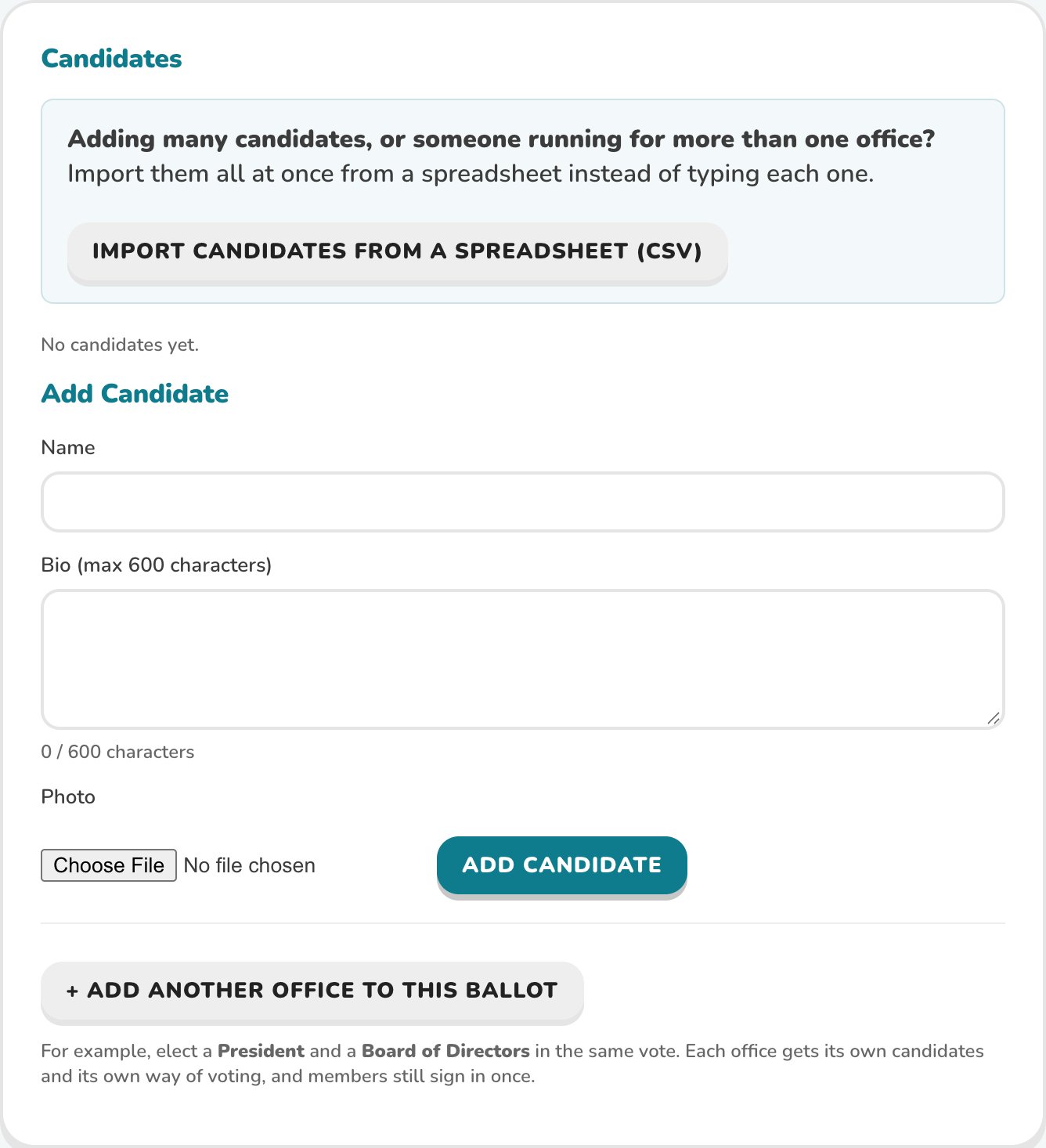
A new election starts with one office. Under Add Candidate, type a name and an optional bio (up to 600 characters), choose an optional photo, and click Add Candidate. Many elections need nothing more.
Adding more offices
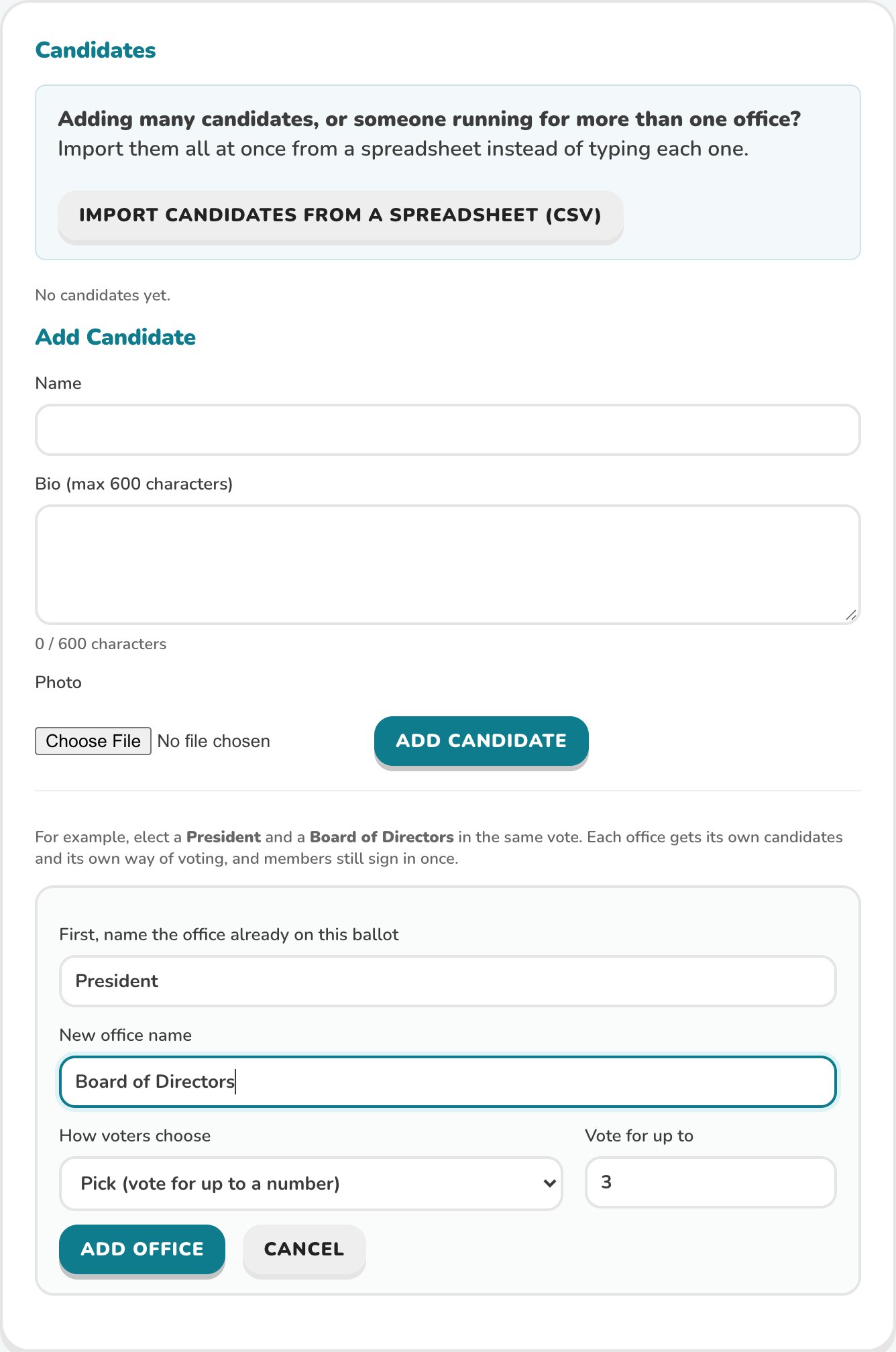
- Click + Add another office to this ballot.
- The first time, name the office that's already there, for example President.
- Name the new office, for example Board of Directors, choose how voters choose, and set the number of seats.
- Click Add office. Repeat for each office (up to 20).
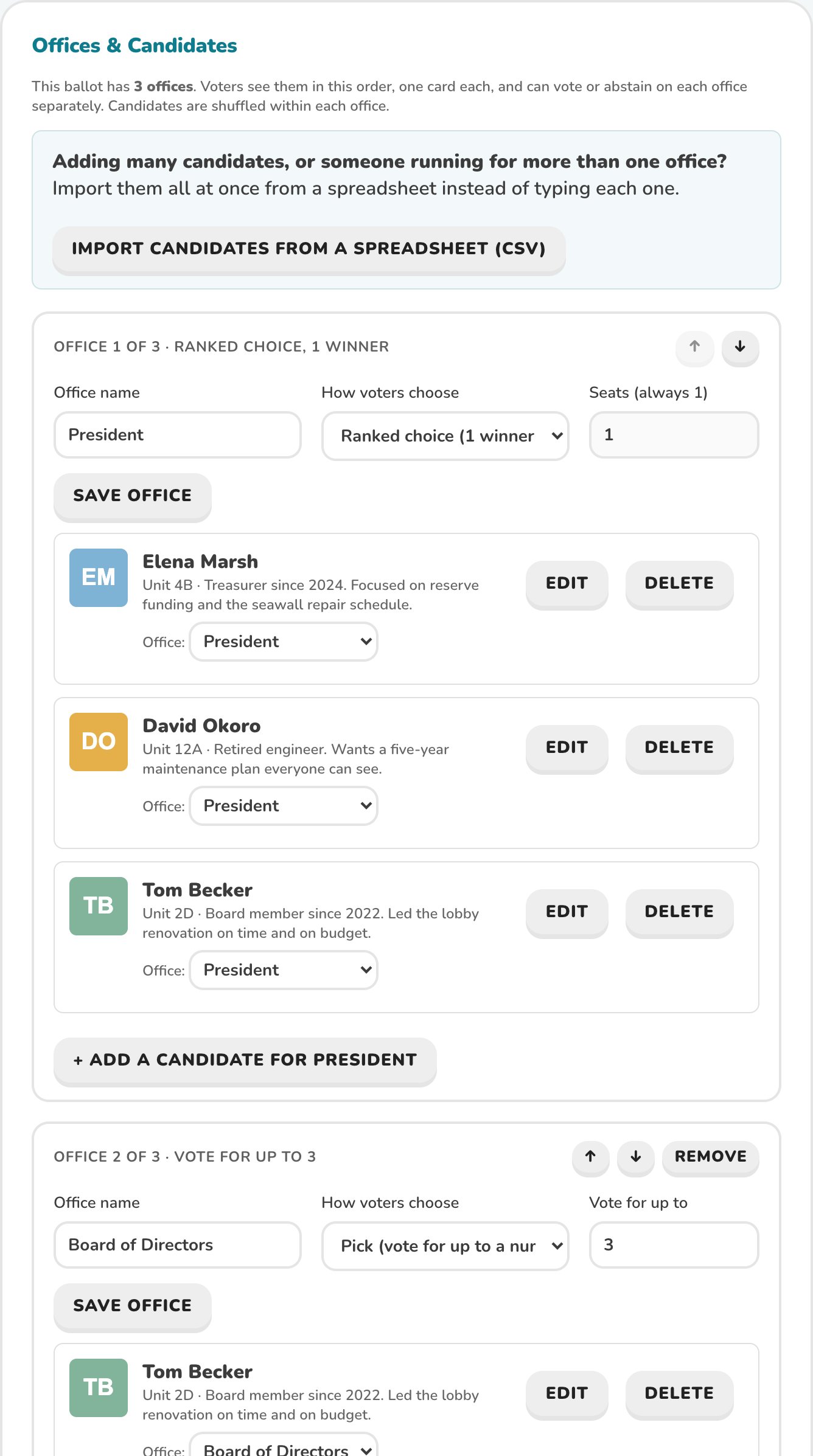
Each office then gets its own card. You can rename it, change its method and seats, move it up or down, remove it (its candidates go with it), and add candidates straight to it. To move a candidate to a different office, use the Office menu under their name.
Importing candidates from a spreadsheet
If your candidates are already in Excel, Google Sheets or Numbers, or you have more than a handful, import them in one step instead of typing each one.
- At the top of the Candidates section, click Import candidates from a spreadsheet (CSV). For a ready-made file to fill in, click Download a sample CSV.
- Put the headings name, bio and office in row 1, then one person on each row. Only name is required. Type each office name exactly as voters should see it.
- Save it as CSV. In Excel: File → Save As → CSV UTF-8. In Google Sheets: File → Download → Comma-separated values. In Numbers: File → Export To → CSV.
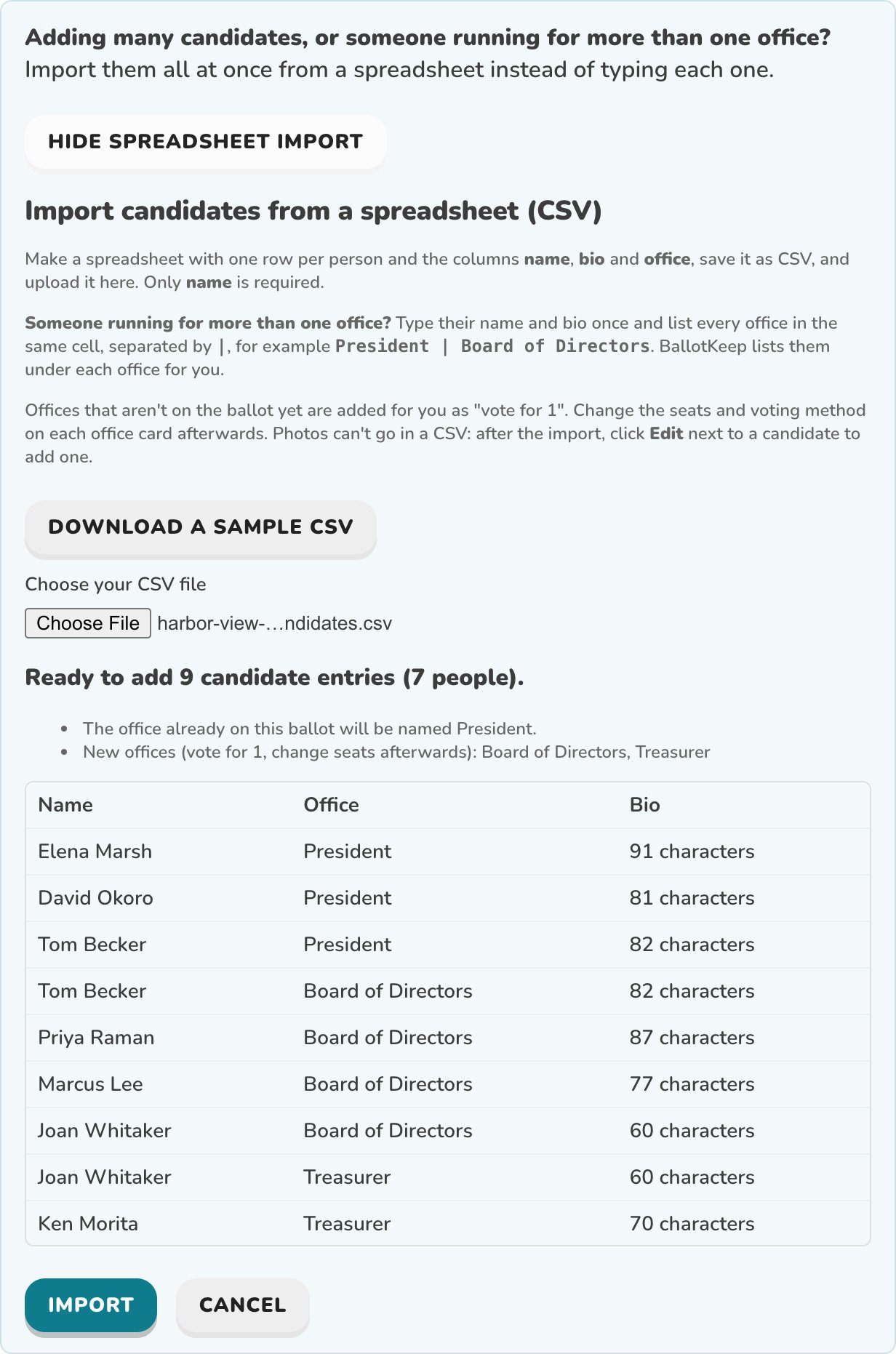
- Click Choose File and pick your CSV. BallotKeep checks it and shows what it will do: who goes in which office, and which offices it will create. Nothing is saved yet.
- Click Import. Then check each office card: new offices start as "vote for 1", so set the seats and voting method you need. Add photos with Edit.
| name | bio | office |
|---|---|---|
| Elena Marsh | Treasurer since 2024. Focused on reserve funding. | President |
| Tom Becker | Board member since 2022. Led the lobby renovation. | President | Board of Directors |
| Priya Raman | Chairs the welcome committee. | Board of Directors |
Someone running for more than one office
Each office has its own list of candidates, so a person running for two offices appears on both lists, and their votes are counted separately in each office. You only have to type their details once:
- In a spreadsheet: list every office in their office cell, separated by
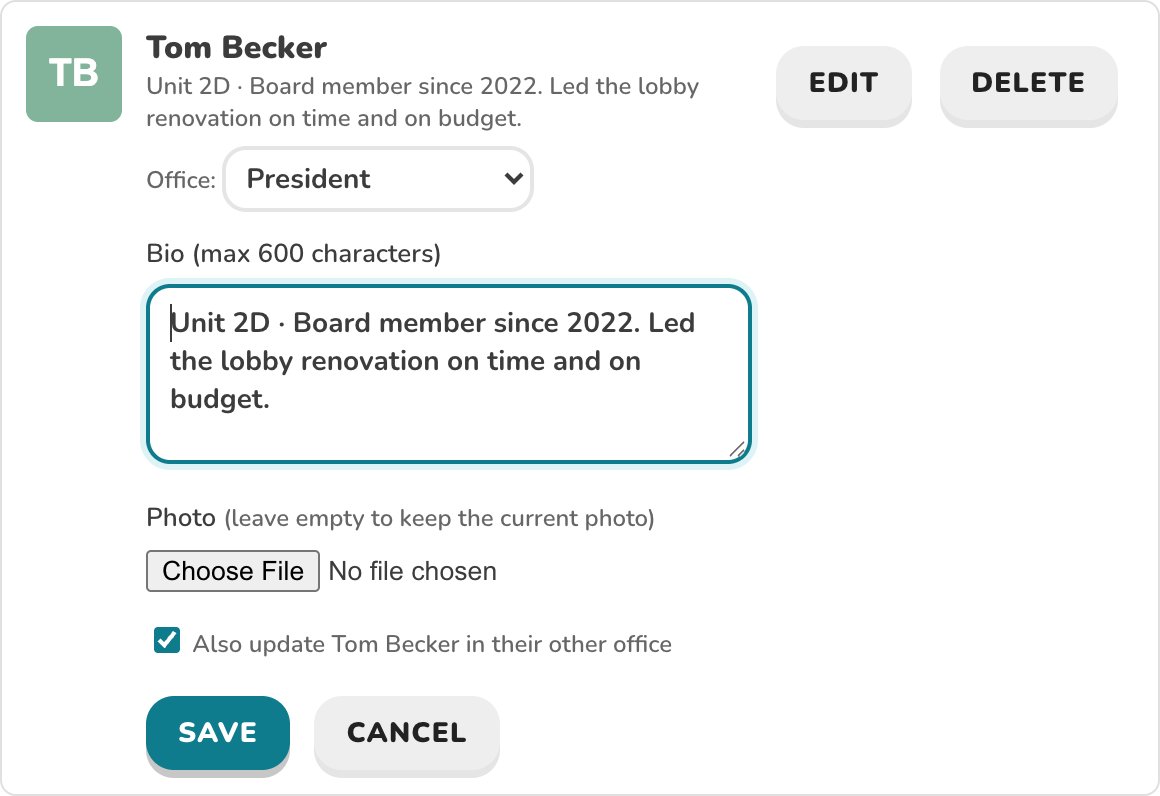
|, for examplePresident | Board of Directors. (One row per office also works; the bio only needs to be on one of the rows.) - Typing them in: add the person to each office by name, with the bio and photo only the first time. Then click Edit on that first entry, keep Also update … in their other office ticked, and click Save. The bio and photo are copied to every office they're running for.
Editing a candidate
Click Edit next to a candidate to change their bio or add or replace their photo. If the same person is listed under other offices, keep Also update ticked to change them everywhere at once. To correct a name, delete the candidate and add them again before voting starts.
11Branding & Yes / No questions
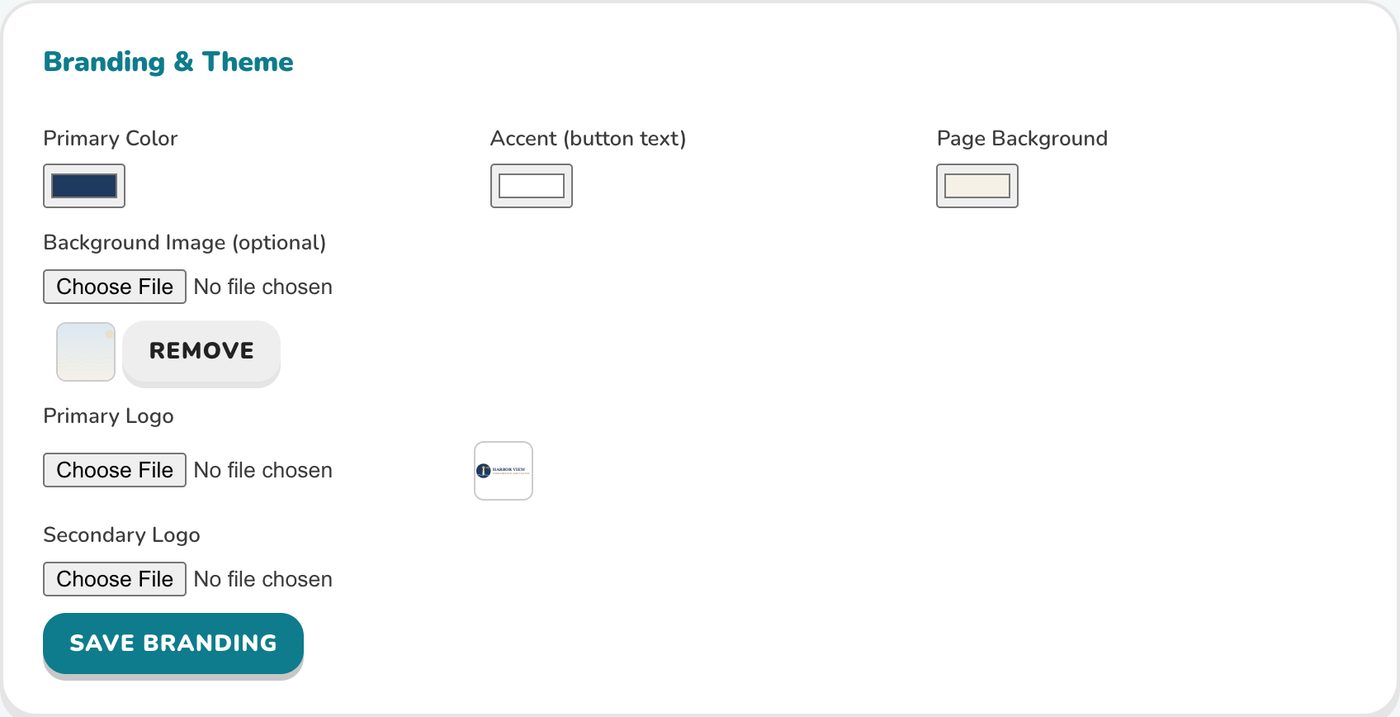
Under Branding & Theme, set your primary color (headings and buttons), button text color, page background, an optional background image and up to two logos. The ballot, sign-in page and preview all use them.
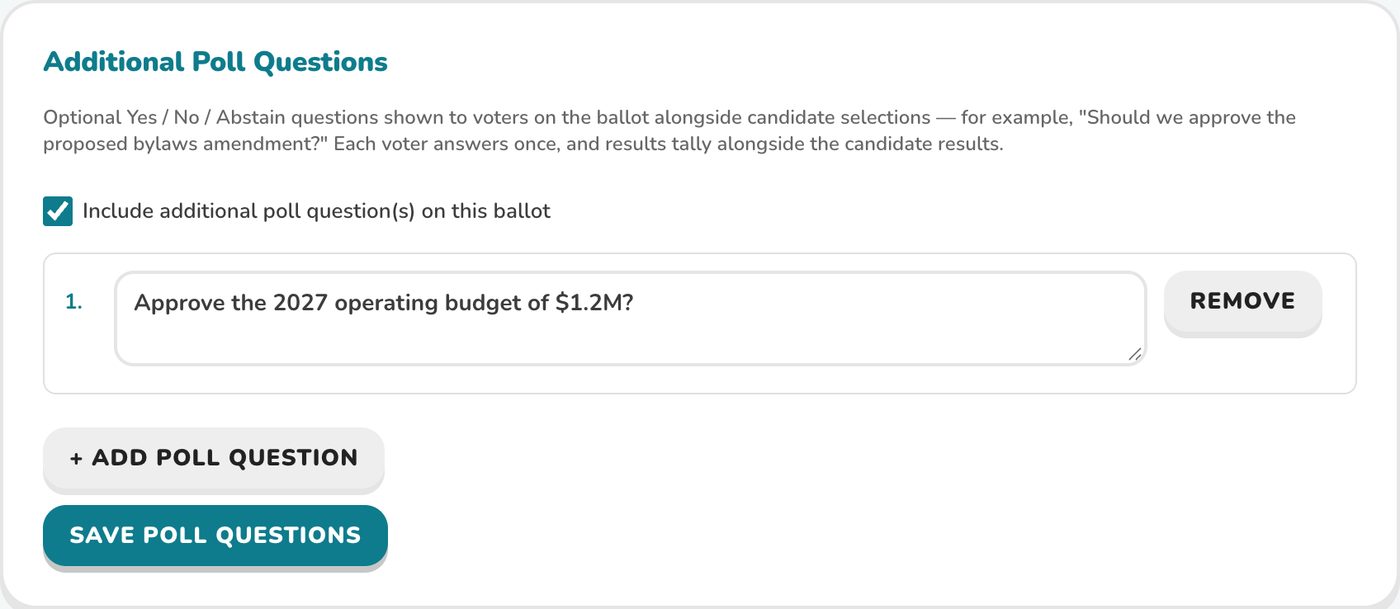
Under Additional Poll Questions, add up to 5 Yes / No / Abstain questions, such as "Approve the 2027 operating budget?". They appear after the offices, and members must answer each one.
12Preview your ballot
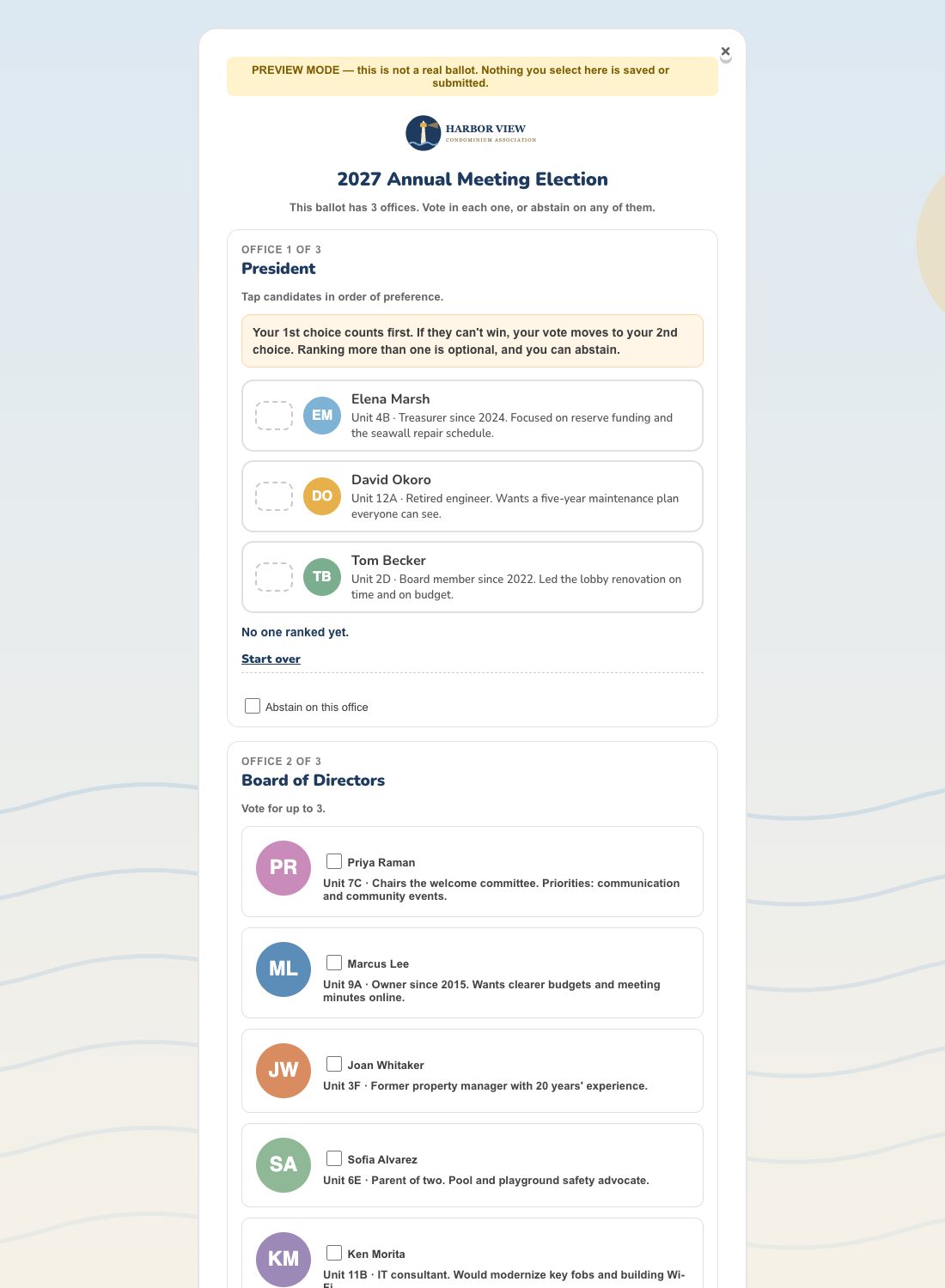
Click Preview Ballot to see exactly what members will see, with your branding, offices, candidates and questions. You can click through it, and nothing is saved or submitted. It even uses unsaved changes on the page.
13Email your voters
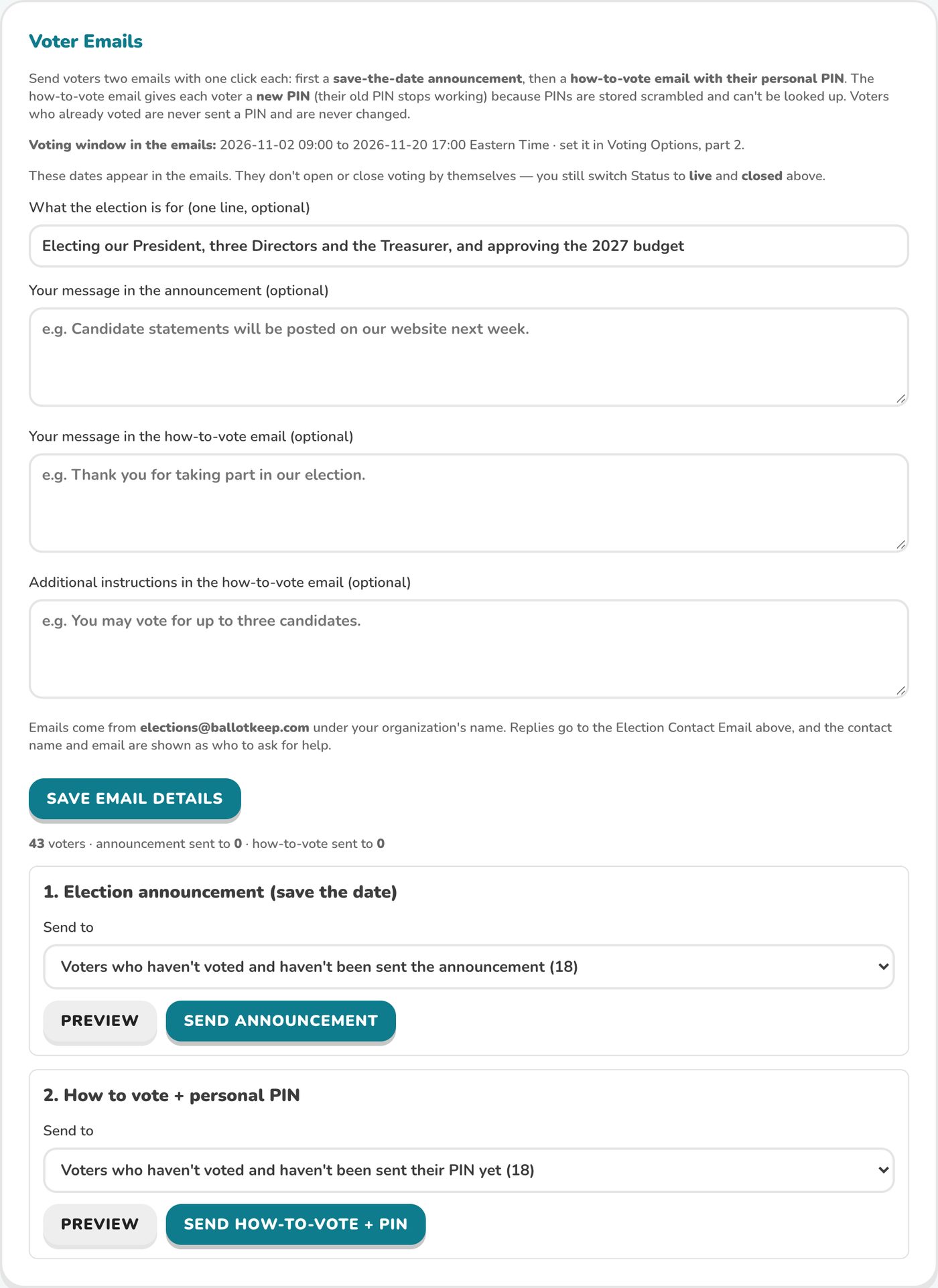
- Write one line about what the election is for, plus optional messages.
- 1. Election announcement (save the date): sent any time, with no PIN.
- 2. How to vote + personal PIN: each member gets the voting link and a new PIN. Send it when you're ready, usually just before voting opens.
Use Preview to read each email first. Emails come from elections@ballotkeep.com under your organization's name, and replies go to your election contact. Members who already voted are never emailed a PIN.
Text-message PINs: with the add-on on, tick Also text the same PIN when you send the how-to-vote email. Members with a mobile number get the PIN and link by text too, and can sign in with their phone number. Use Preview Text Message to read it first. Anyone who replies STOP is skipped. The section shows how many texts are left; if they run out, PINs still go by email. Don't have the add-on? Add it from this section ($29 per election, up to 1,500 texts; annual plans can add $99 a year for every election, up to 5,000 texts a year), or email us to turn it on the same day.
14Open voting & watch turnout
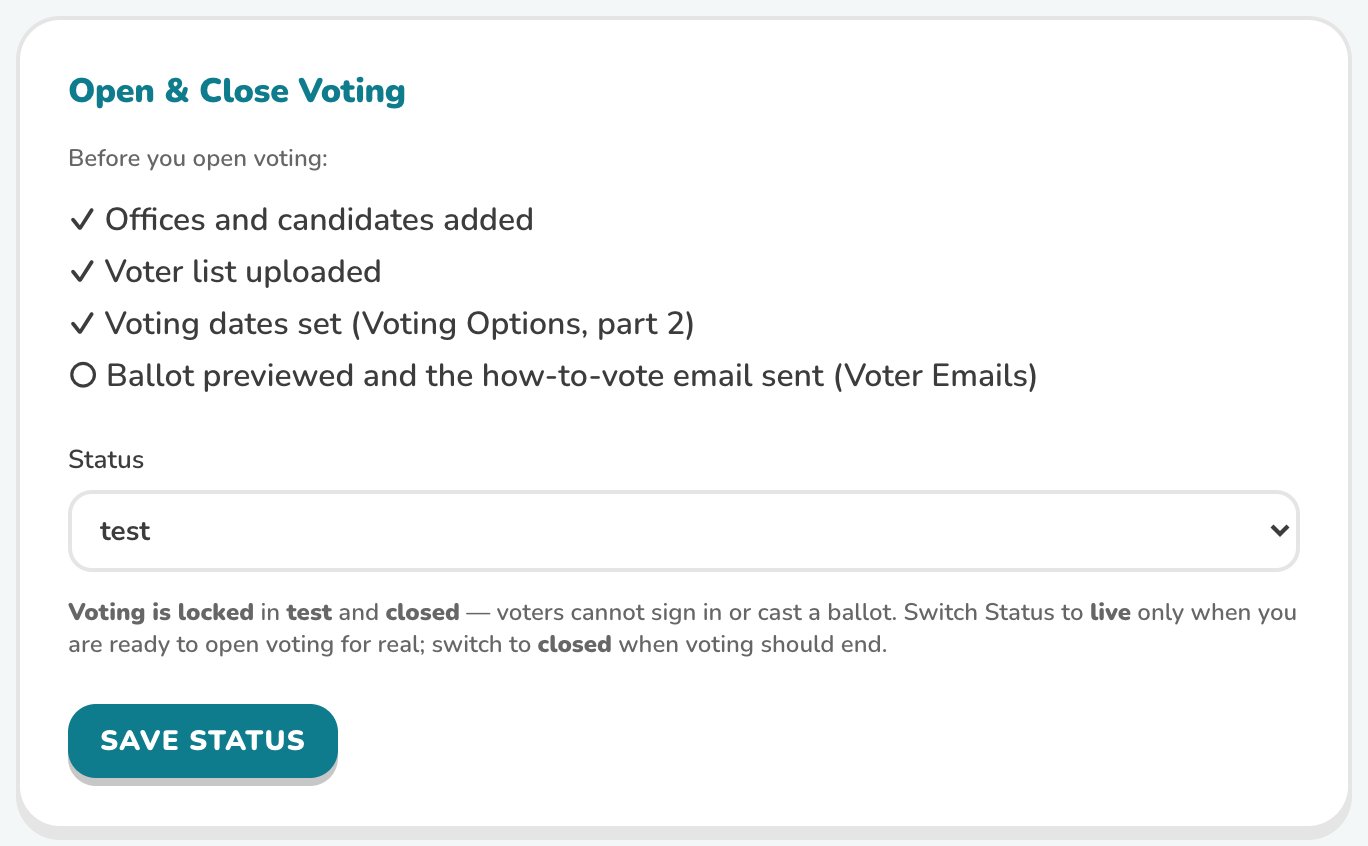
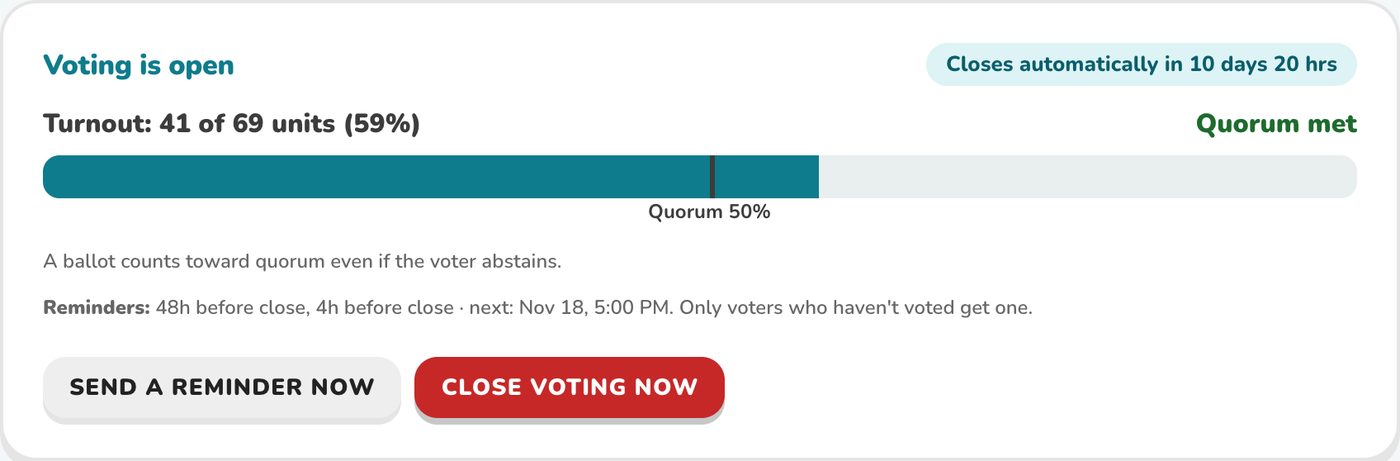
When the ballot is built, previewed and the how-to-vote email is ready, go to Open & Close Voting near the bottom of the console. In test mode it shows a short checklist first. Switch Status to live and click Save Status, or let voting open automatically on schedule. The top of the console then shows live turnout, the quorum line, when voting closes, and the next reminder.
- Status:
test(setup, voting locked),live(voting open),closed(voting over).
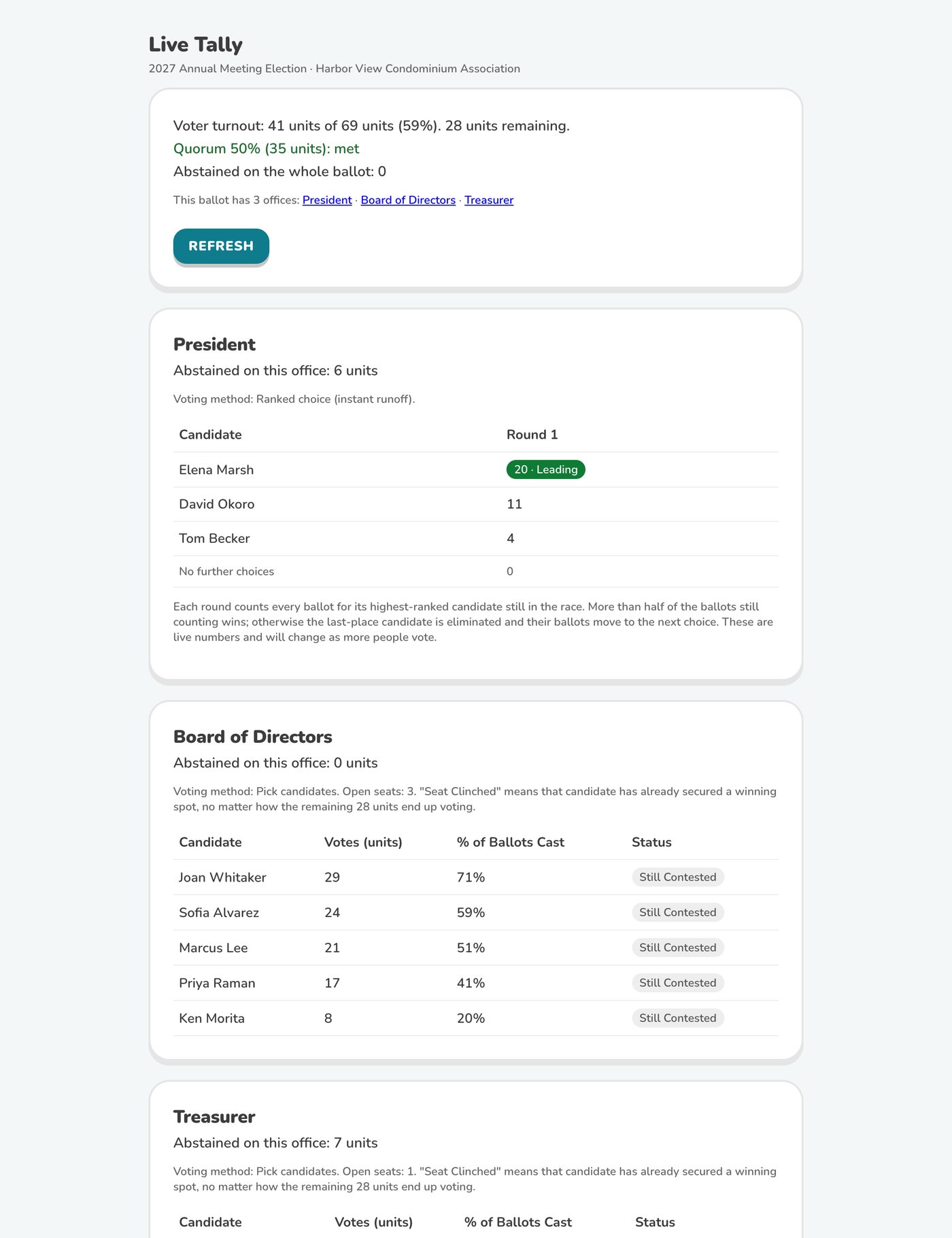
Open Results & Records for live numbers per office. "Seat Clinched" means a candidate has already won a seat, no matter how the remaining members vote.
15Meeting votes
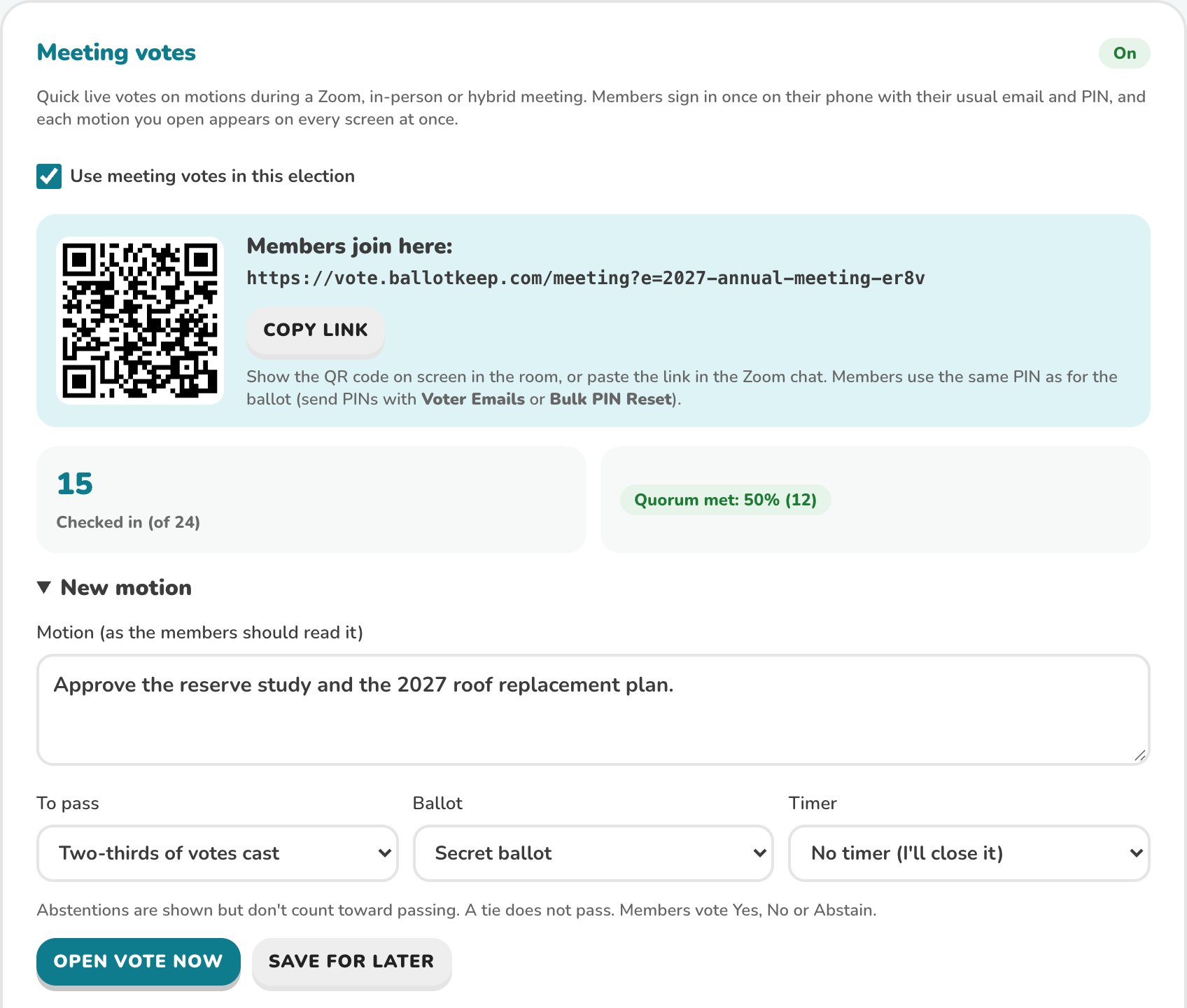
Vote on motions during your meeting, in the room, on Zoom, or both. Members vote on their own phone or computer, and every motion you open appears on every screen at once. Meeting votes is in the admin console and is included in every plan.
Before the meeting
- Upload your voter list and send PINs (Voter Emails or Bulk PIN Reset). Members use the same email and PIN as for the ballot.
- Under Meeting votes, tick Use meeting votes in this election.
- When the meeting starts, set Status to
live. - Show the QR code on screen in the room, or paste the link in the Zoom chat. Members sign in once and stay signed in for up to 12 hours.
Each motion
- Type the motion. Choose To pass (majority or two-thirds of the votes cast), Ballot (secret ballot or roll call) and an optional Timer.
- Click Open vote now, or Save for later to prepare motions before the meeting. Only one motion can be open at a time.
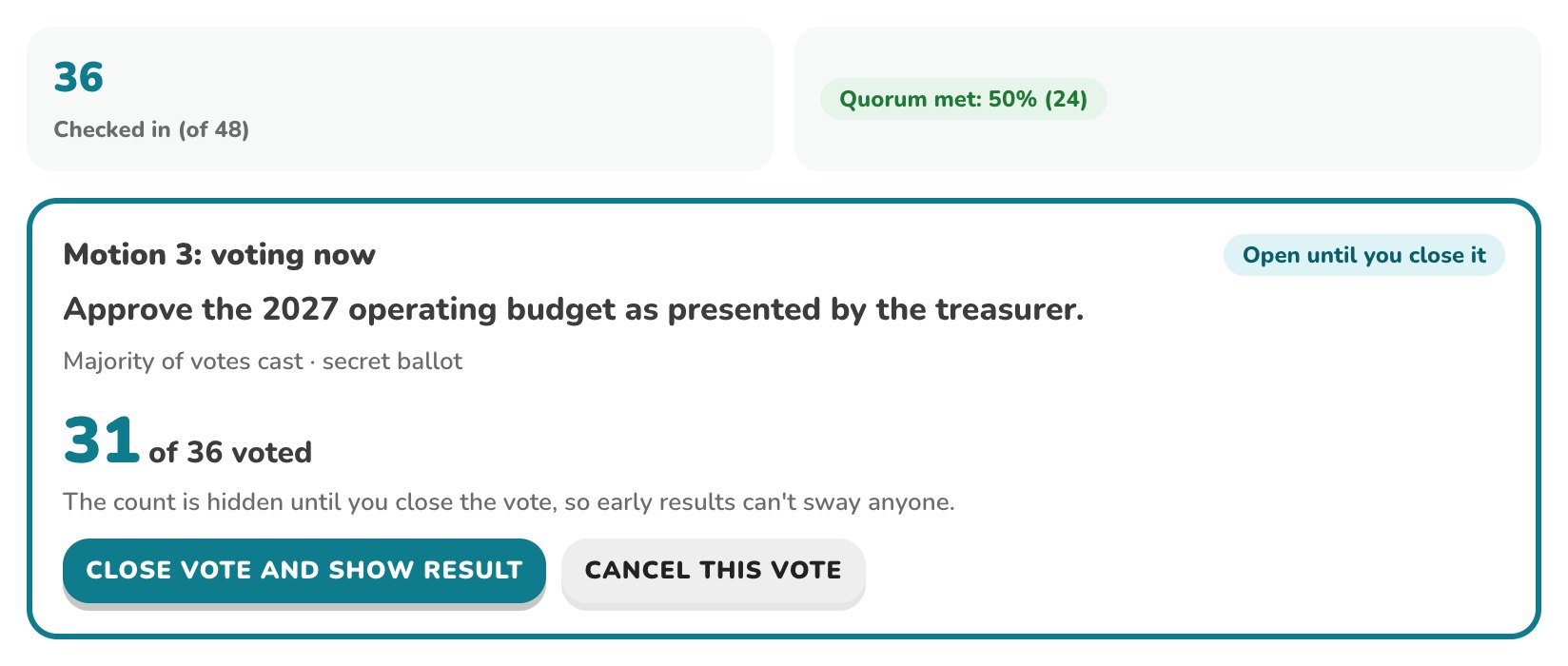
- Watch "X of Y voted". The count stays hidden until you close the vote, so early results can't sway anyone.
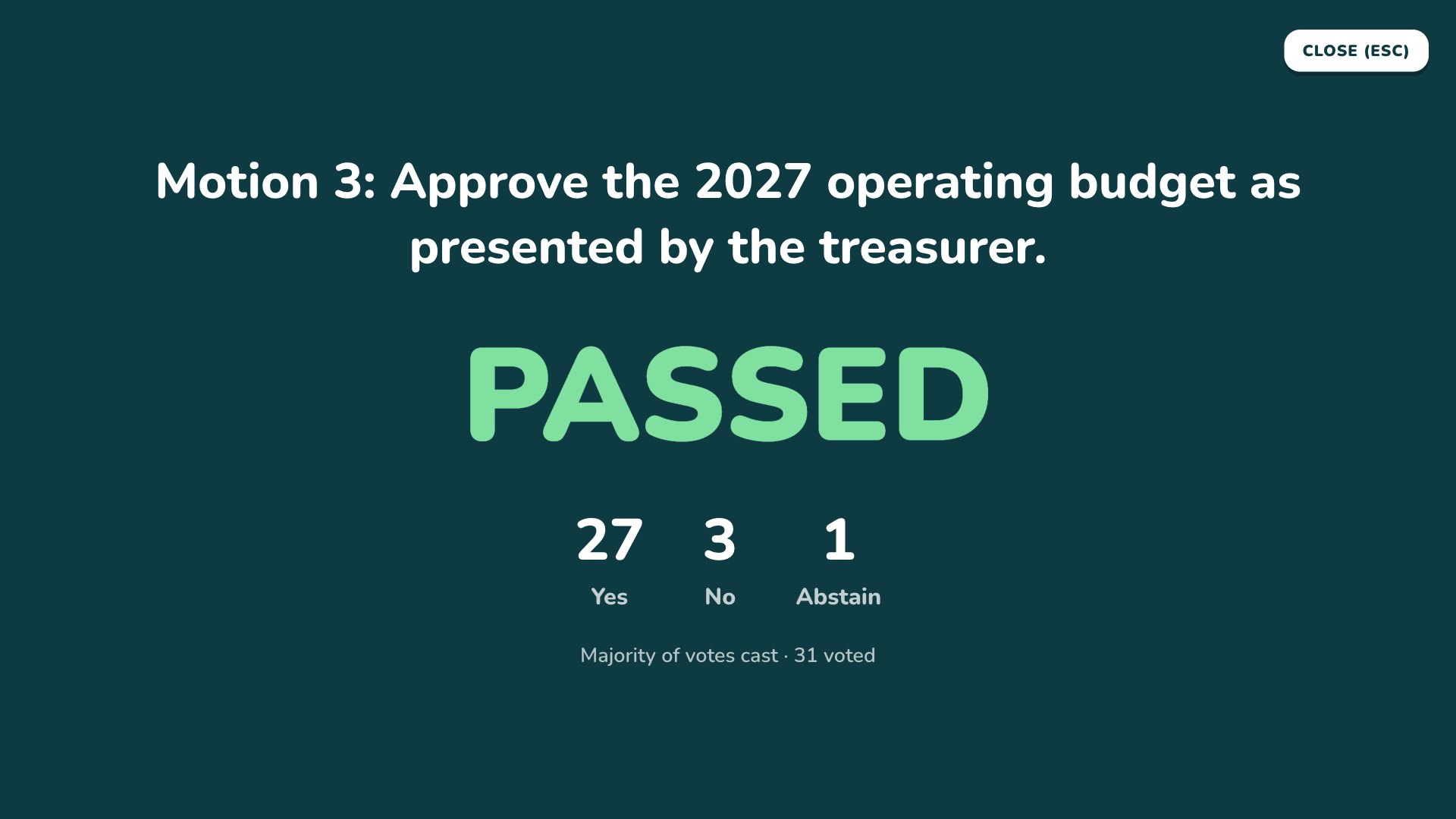
- Click Close vote and show result. The result fills the screen for the room or a Zoom screen share. Press Esc or click to go back. Members see the result on their phones too.
After the meeting
Click Download votes for the minutes (PDF) for every motion, its result, attendance and quorum. Click End meeting to sign everyone out. Opening, closing and cancelling motions are recorded in the audit log. How anyone voted on a secret ballot is never recorded.
16Close & results
Voting closes at the scheduled time, or when you click Close voting now. Then:
- The certified report goes to your secretary and the other recipients automatically.
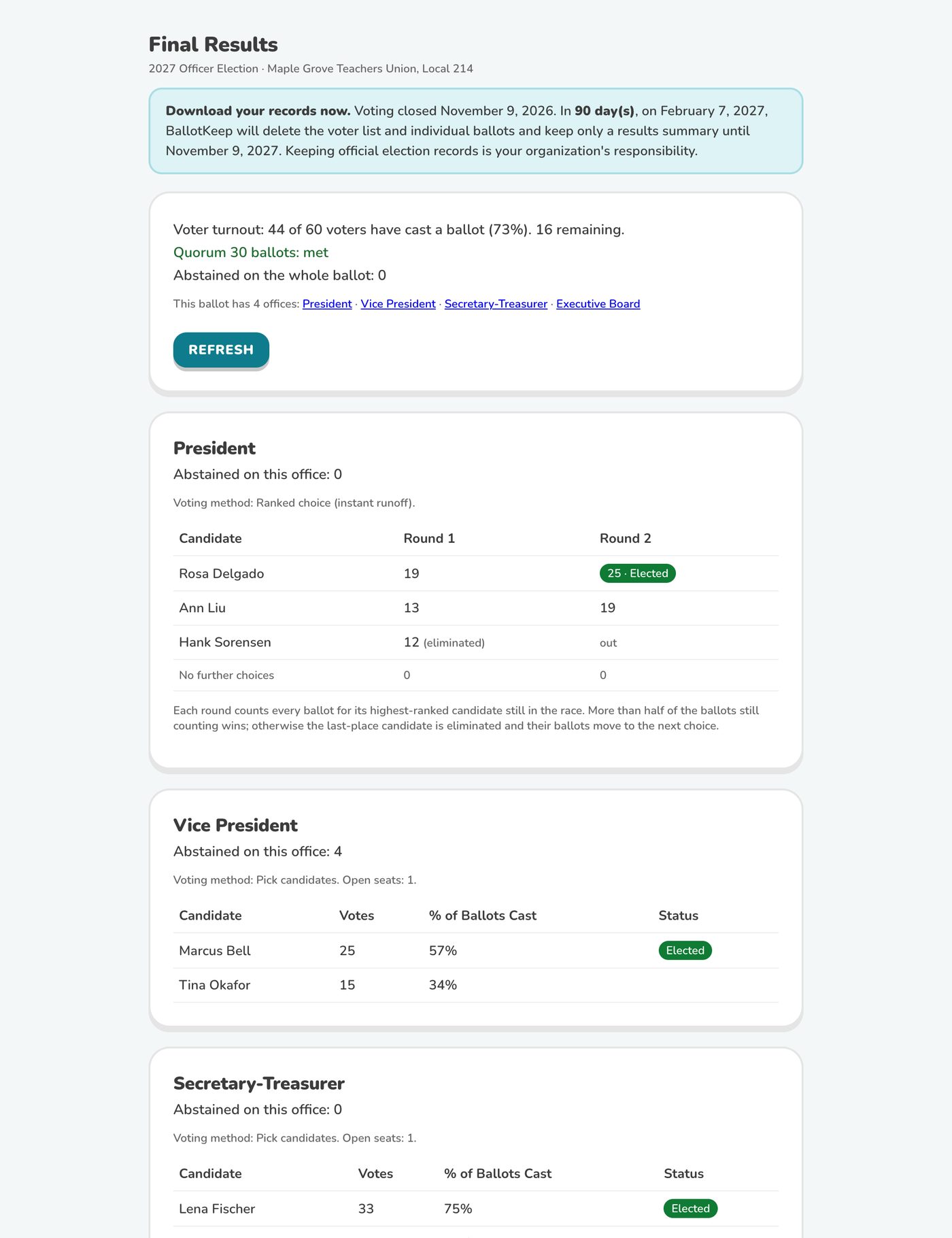
- Results & Records shows the final results for every office, with Elected or Tie marked.
- The ballots are now the official record. Reset All Votes no longer works on this election, even if you reopen voting.
17Records & retention
On Results & Records, download:
- Results (CSV): totals for every office, round by round for ranked choice.
- Voter turnout (CSV): who voted, never how.
- All ballots (CSV): every anonymous ballot, one column per office, for a recount or audit.
- Activity log (CSV): every admin action, with a tamper-evident integrity check.
To delete an election early, close voting first, then use Delete This Election at the bottom of the admin console. Its data is erased. BallotKeep keeps a short record that it was deleted, with who did it and when.
18Playbooks by organization
Common setups. Always follow your own bylaws first.
HOA / condo association
- Offices: President, Directors (vote for up to N), Treasurer
- Weighted votes by units, if your declaration says so
- Proxies on, with paper proxy forms entered by the manager
- Meeting votes for the budget and other motions at the annual meeting
- Quorum as a % of units, plus a budget question
- Report to the secretary and the management company
Union local
- 8-digit PINs
- Officer slate: President (ranked choice if your constitution allows), VP, Secretary-Treasurer, Executive Board
- Automatic open and close; reminders 2 days and 4 hours before
- Certified report to the recording secretary
- Download all records for your files
Nonprofit board
- One office: "Board of Directors, vote for up to 3"
- Nominations before the ballot
- Yes / No questions for bylaw amendments
- Quorum as a number of ballots
- Secretary gets the report; a co-admin for backup
Club / small group
- Start with the free practice election (5 voters)
- One office, pick 1
- Logo and colors for a friendly feel
- One reminder 1 day before close
| Size | What usually helps |
|---|---|
| Under 25 voters | Paste emails directly. One reminder is plenty. Watch the voter list and nudge people personally. |
| 25–250 | Upload a CSV. Send the save-the-date a week ahead. Use two reminders and set a quorum. |
| 250+ | Contact us for a plan. Add a co-admin, send the voter guide link early, and use automatic open and close. |
19Troubleshooting
| Problem | Fix |
|---|---|
| A member never got their email | Ask them to check spam for elections@ballotkeep.com. Check the address in the voter list. Then send the how-to-vote email to "voters who haven't been sent their PIN yet", or reset their PIN. |
| A member is locked out | Click Reset PIN next to their email. That unlocks them, and you give them the new PIN. |
| "Ballots have already been cast, so offices (or candidates) can't be…" | The ballot locks after the first vote: offices and candidates can't be added, removed or renamed (you can still correct an office's name and fix a candidate's bio or photo). If those were practice votes, switch Status to test, use Reset All Votes, then edit. |
| The spreadsheet import says "Nothing was added" | One or more rows need fixing; they're listed by row number (row 1 is the headings). Fix them, save as CSV again and choose the file again. If it can't find the names, check that row 1 says name, bio and office, in English. |
| Reset All Votes or Delete is refused | Reset only works on practice votes: the election must be in test and voting must never have closed. Deleting needs voting closed first. This protects your official results. |
| Can't switch to live | Read the message under Save Settings. Usually the plan isn't active yet or there are more voters than the plan allows. |
| Wrong closing time | Change the time in Voting Options and save. Reminders adjust to the new time. |
| A member can't join Meeting votes | Check that Status is live and Meeting votes is ticked. Members use the same email and PIN as the ballot. If they've lost their PIN, click Reset PIN and give them the new one. |
| A motion was worded wrong | Click Cancel this vote. Its votes are thrown away. Then open a corrected motion. |
| Lost your phone or authenticator | Use a recovery code, or ask a co-admin to send you a new invite link. |
Still stuck? Email kingsley@castleknight.org or call 413-200-9869.